> For the complete documentation index, see [llms.txt](https://adpopcornssp.gitbook.io/ssp-sdk/llms.txt). Markdown versions of documentation pages are available by appending `.md` to page URLs; this page is available as [Markdown](https://adpopcornssp.gitbook.io/ssp-sdk/sdk/ios/ios-2.x.x/undefined-6/undefined-1.md).
# 네이티브 동영상 레이아웃 가이드
애드팝콘 v2.11.8 버전부터 동영상 광고를 지원합니다. 현재 지원 및 지원 예정인 업체는 아래와 같습니다.
* NAM
* AdFit
* AdMob, GAM
* Pangle (지원 예정)
* AdPopcornSSP(지원 예정)
#### 네이티브 동영상 레이아웃 기본 설정 `AdPopcornSSPNativeAd` 를 생성합니다. \
storyboard에 AdPopcornSSPNativeAd 영역 지정 후 아래 스크린샷과 같이 Outlet 연결합니다.
Objective-C 연동 코드
@interface AdPopcornSSPNativeXibController : UIViewController
@end
```
**.m**
```objective-c
#import "AdPopcornSSPNativeXibController.h"
#import "AdPopcornSSPNativeAd.h"
@interface AdPopcornSSPNativeXibController ()
{}
@property (strong, nonatomic) IBOutlet AdPopcornSSPNativeAd *adPopcornSSPNativeAd;
// APSSP NativeAd View
@property (strong, nonatomic) IBOutlet UIView *apSSPNativeAdView;
@property (strong, nonatomic) IBOutlet UIImageView *apSSPIconImageView;
@property (strong, nonatomic) IBOutlet UIImageView *apSSPMainImageView;
@property (strong, nonatomic) IBOutlet UILabel *apSSPTitleView;
@property (strong, nonatomic) IBOutlet UILabel *apSSPDescView;
@property (strong, nonatomic) IBOutlet UILabel *apSSPCTAView;
@property (weak, nonatomic) IBOutlet UIButton *apSSPCTAButton;
@end
@implementation AdPopcornSSPNativeXibController
- (void)dealloc {
NSLog(@"AdPopcornSSPNativeXibController dealloc");
}
- (void)viewDidLoad {
[super viewDidLoad];
// 1. AdPopcornSSPNativeAd 설정 (XIB에서 아울렛 연결됨)
[_adPopcornSSPNativeAd noAdViewHidden:YES];
_adPopcornSSPNativeAd.delegate = self;
[_adPopcornSSPNativeAd setPlacementInfoWithAppKey:@"" placementId:@"" viewController:self];
// 2. APSSPNativeAdRenderer 설정
APSSPNativeAdRenderer *renderer = [[APSSPNativeAdRenderer alloc] init];
renderer.apSSPNativeAdView = _apSSPNativeAdView;
renderer.titleLabel = _apSSPTitleView;
renderer.descLabel = _apSSPDescView;
renderer.mainImageView = _apSSPMainImageView;
renderer.iconImageView = _apSSPIconImageView;
renderer.ctaButton = _apSSPCTAButton;
renderer.ctaLabel = _apSSPCTAView;
renderer.privacyIconCornerRadius = 10;
renderer.privacyIconPosition = 1;
renderer.privacyIconRightMargin = 20;
renderer.privacyIconLeftMargin = 50;
renderer.useTemplate = NO;
renderer.templatePrivacyIconLeftMargin = 10;
renderer.templatePrivacyIconRightMargin = 10;
renderer.templatePrivacyIconTopMargin = 10;
renderer.templatePrivacyIconBottomMargin = 10;
[_adPopcornSSPNativeAd setApSSPRenderer:renderer superView:_apSSPNativeAdView];
// 3. 광고 요청
[_adPopcornSSPNativeAd loadRequest];
}
#pragma mark - APSSPNativeAdDelegate
- (void)APSSPNativeAdLoadSuccess:(AdPopcornSSPNativeAd *)nativeAd {
NSLog(@"APSSPNativeAdLoadSuccess : %@, %@", nativeAd, [nativeAd getPlacementId]);
}
- (void)APSSPNativeAdLoadFail:(AdPopcornSSPNativeAd *)nativeAd error:(AdPopcornSSPError *)error {
NSLog(@"APSSPNativeAdLoadFail");
}
- (void)APSSPNativeAdClicked:(AdPopcornSSPNativeAd *)nativeAd {
NSLog(@"APSSPNativeAdClicked");
}
- (void)APSSPNativeAdImpression:(AdPopcornSSPNativeAd *)nativeAd {
NSLog(@"APSSPNativeAdImpression");
}
- (void)APSSPNativeAdHidden:(AdPopcornSSPNativeAd *)nativeAd {
NSLog(@"APSSPNativeAdHidden");
}
@end
```
Swift xib 연동 코드 ", placementId: "", viewController: self)
// 2. Renderer 설정
let renderer = APSSPNativeAdRenderer()
renderer.apSSPNativeAdView = apSSPNativeAdView
renderer.titleLabel = apSSPTitleView
renderer.descLabel = apSSPDescView
renderer.mainImageView = apSSPMainImageView
renderer.iconImageView = apSSPIconImageView
renderer.ctaButton = apSSPCTAButton
renderer.ctaLabel = apSSPCTAView
renderer.privacyIconCornerRadius = 10
renderer.privacyIconPosition = 1
renderer.privacyIconRightMargin = 20
renderer.privacyIconLeftMargin = 50
renderer.useTemplate = false
renderer.templatePrivacyIconLeftMargin = 10
renderer.templatePrivacyIconRightMargin = 10
renderer.templatePrivacyIconTopMargin = 10
renderer.templatePrivacyIconBottomMargin = 10
adPopcornSSPNativeAd.setApSSPRenderer(renderer, superView: apSSPNativeAdView)
// 3. 광고 요청
adPopcornSSPNativeAd.loadRequest()
}
// MARK: - APSSPNativeAdDelegate
func apsspNativeAdLoadSuccess(_ nativeAd: AdPopcornSSPNativeAd) {
print("APSSPNativeAdLoadSuccess: \(nativeAd), \(nativeAd.getPlacementId() ?? "")")
}
func apsspNativeAdLoadFail(_ nativeAd: AdPopcornSSPNativeAd, error: AdPopcornSSPError) {
print("APSSPNativeAdLoadFail")
}
func apsspNativeAdClicked(_ nativeAd: AdPopcornSSPNativeAd) {
print("APSSPNativeAdClicked")
}
func apsspNativeAdImpression(_ nativeAd: AdPopcornSSPNativeAd) {
print("APSSPNativeAdImpression")
}
func apsspNativeAdHidden(_ nativeAd: AdPopcornSSPNativeAd) {
print("APSSPNativeAdHidden")
}
}
```
#### - Code base 연동 방식
* Native 광고 화면을 Code로 만들고자 한다면 다음 코드를 활용해서 손쉽게 진행하세요.
Objective-C
@interface AdPopcornSSPNativeCodeController : UIViewController
@end
```
.m
```objective-c
#import "AdPopcornSSPNativeCodeController.h"
#import "AdPopcornSSPNativeAd.h"
@interface AdPopcornSSPNativeCodeController ()
{}
@property (strong, nonatomic) AdPopcornSSPNativeAd *adPopcornSSPNativeAd;
// APSSP NativeAd View
@property (strong, nonatomic) UIView *apSSPNativeAdView;
@property (strong, nonatomic) UIImageView *apSSPIconImageView;
@property (strong, nonatomic) UIImageView *apSSPMainImageView;
@property (strong, nonatomic) UILabel *apSSPTitleView;
@property (strong, nonatomic) UILabel *apSSPDescView;
@property (strong, nonatomic) UILabel *apSSPCTAView;
@property (strong, nonatomic) UIButton *apSSPCTAButton;
@end
@implementation AdPopcornSSPNativeCodeController
- (void)dealloc {
NSLog(@"AdPopcornSSPNativeCodeController dealloc");
}
- (void)viewDidLoad {
[super viewDidLoad];
self.view.backgroundColor = [UIColor whiteColor];
// 1. AdPopcornSSPNativeAd 컨테이너 생성
_adPopcornSSPNativeAd = [[AdPopcornSSPNativeAd alloc] initWithFrame:CGRectZero];
_adPopcornSSPNativeAd.translatesAutoresizingMaskIntoConstraints = NO;
_adPopcornSSPNativeAd.hidden = YES;
[self.view addSubview:_adPopcornSSPNativeAd];
[NSLayoutConstraint activateConstraints:@[
[_adPopcornSSPNativeAd.leadingAnchor constraintEqualToAnchor:self.view.leadingAnchor constant:10],
[_adPopcornSSPNativeAd.trailingAnchor constraintEqualToAnchor:self.view.trailingAnchor constant:-10],
[_adPopcornSSPNativeAd.topAnchor constraintEqualToAnchor:self.view.safeAreaLayoutGuide.topAnchor constant:20],
[_adPopcornSSPNativeAd.heightAnchor constraintEqualToConstant:300]
]];
// 2. apSSPNativeAdView (394x300 영역)
_apSSPNativeAdView = [[UIView alloc] init];
_apSSPNativeAdView.translatesAutoresizingMaskIntoConstraints = NO;
[_adPopcornSSPNativeAd addSubview:_apSSPNativeAdView];
[NSLayoutConstraint activateConstraints:@[
[_apSSPNativeAdView.leadingAnchor constraintEqualToAnchor:_adPopcornSSPNativeAd.leadingAnchor],
[_apSSPNativeAdView.trailingAnchor constraintEqualToAnchor:_adPopcornSSPNativeAd.trailingAnchor],
[_apSSPNativeAdView.topAnchor constraintEqualToAnchor:_adPopcornSSPNativeAd.topAnchor],
[_apSSPNativeAdView.bottomAnchor constraintEqualToAnchor:_adPopcornSSPNativeAd.bottomAnchor]
]];
// 3. 아이콘 이미지 (80x80, 좌상단)
_apSSPIconImageView = [[UIImageView alloc] init];
_apSSPIconImageView.translatesAutoresizingMaskIntoConstraints = NO;
_apSSPIconImageView.contentMode = UIViewContentModeScaleAspectFit;
[_apSSPNativeAdView addSubview:_apSSPIconImageView];
[NSLayoutConstraint activateConstraints:@[
[_apSSPIconImageView.leadingAnchor constraintEqualToAnchor:_apSSPNativeAdView.leadingAnchor constant:8],
[_apSSPIconImageView.topAnchor constraintEqualToAnchor:_apSSPNativeAdView.topAnchor constant:8],
[_apSSPIconImageView.widthAnchor constraintEqualToConstant:80],
[_apSSPIconImageView.heightAnchor constraintEqualToConstant:80]
]];
// 4. 타이틀 라벨 (아이콘 오른쪽)
_apSSPTitleView = [[UILabel alloc] init];
_apSSPTitleView.translatesAutoresizingMaskIntoConstraints = NO;
_apSSPTitleView.font = [UIFont boldSystemFontOfSize:15];
_apSSPTitleView.numberOfLines = 1;
[_apSSPNativeAdView addSubview:_apSSPTitleView];
[NSLayoutConstraint activateConstraints:@[
[_apSSPTitleView.leadingAnchor constraintEqualToAnchor:_apSSPIconImageView.trailingAnchor constant:8],
[_apSSPTitleView.trailingAnchor constraintEqualToAnchor:_apSSPNativeAdView.trailingAnchor constant:-8],
[_apSSPTitleView.topAnchor constraintEqualToAnchor:_apSSPIconImageView.topAnchor]
]];
// 5. 설명 라벨 (타이틀 아래)
_apSSPDescView = [[UILabel alloc] init];
_apSSPDescView.translatesAutoresizingMaskIntoConstraints = NO;
_apSSPDescView.font = [UIFont systemFontOfSize:13];
_apSSPDescView.numberOfLines = 2;
[_apSSPNativeAdView addSubview:_apSSPDescView];
[NSLayoutConstraint activateConstraints:@[
[_apSSPDescView.leadingAnchor constraintEqualToAnchor:_apSSPTitleView.leadingAnchor],
[_apSSPDescView.trailingAnchor constraintEqualToAnchor:_apSSPTitleView.trailingAnchor],
[_apSSPDescView.topAnchor constraintEqualToAnchor:_apSSPTitleView.bottomAnchor constant:4]
]];
// 6. CTA 라벨 (설명 아래)
_apSSPCTAView = [[UILabel alloc] init];
_apSSPCTAView.translatesAutoresizingMaskIntoConstraints = NO;
_apSSPCTAView.font = [UIFont systemFontOfSize:12];
_apSSPCTAView.textColor = [UIColor grayColor];
[_apSSPNativeAdView addSubview:_apSSPCTAView];
[NSLayoutConstraint activateConstraints:@[
[_apSSPCTAView.leadingAnchor constraintEqualToAnchor:_apSSPTitleView.leadingAnchor],
[_apSSPCTAView.topAnchor constraintEqualToAnchor:_apSSPDescView.bottomAnchor constant:4]
]];
// 7. CTA 버튼 (아이콘 아래, 좌측)
_apSSPCTAButton = [UIButton buttonWithType:UIButtonTypeSystem];
_apSSPCTAButton.translatesAutoresizingMaskIntoConstraints = NO;
[_apSSPCTAButton setTitle:@"CTA" forState:UIControlStateNormal];
_apSSPCTAButton.titleLabel.font = [UIFont boldSystemFontOfSize:14];
[_apSSPNativeAdView addSubview:_apSSPCTAButton];
[NSLayoutConstraint activateConstraints:@[
[_apSSPCTAButton.leadingAnchor constraintEqualToAnchor:_apSSPNativeAdView.leadingAnchor constant:8],
[_apSSPCTAButton.topAnchor constraintEqualToAnchor:_apSSPIconImageView.bottomAnchor constant:8],
[_apSSPCTAButton.widthAnchor constraintEqualToConstant:80],
[_apSSPCTAButton.heightAnchor constraintEqualToConstant:30]
]];
// 8. 메인 이미지 (하단 영역)
_apSSPMainImageView = [[UIImageView alloc] init];
_apSSPMainImageView.translatesAutoresizingMaskIntoConstraints = NO;
_apSSPMainImageView.contentMode = UIViewContentModeScaleAspectFit;
[_apSSPNativeAdView addSubview:_apSSPMainImageView];
[NSLayoutConstraint activateConstraints:@[
[_apSSPMainImageView.leadingAnchor constraintEqualToAnchor:_apSSPNativeAdView.leadingAnchor constant:8],
[_apSSPMainImageView.trailingAnchor constraintEqualToAnchor:_apSSPNativeAdView.trailingAnchor constant:-8],
[_apSSPMainImageView.topAnchor constraintEqualToAnchor:_apSSPCTAButton.bottomAnchor constant:8],
[_apSSPMainImageView.bottomAnchor constraintEqualToAnchor:_apSSPNativeAdView.bottomAnchor constant:-8]
]];
// 9. AdPopcornSSPNativeAd 설정
[_adPopcornSSPNativeAd noAdViewHidden:YES];
_adPopcornSSPNativeAd.delegate = self;
[_adPopcornSSPNativeAd setPlacementInfoWithAppKey:@"" placementId:@"" viewController:self];
// 10. APSSPNativeAdRenderer 설정
APSSPNativeAdRenderer *renderer = [[APSSPNativeAdRenderer alloc] init];
renderer.apSSPNativeAdView = _apSSPNativeAdView;
renderer.titleLabel = _apSSPTitleView;
renderer.descLabel = _apSSPDescView;
renderer.mainImageView = _apSSPMainImageView;
renderer.iconImageView = _apSSPIconImageView;
renderer.ctaButton = _apSSPCTAButton;
renderer.ctaLabel = _apSSPCTAView;
renderer.privacyIconCornerRadius = 10;
renderer.privacyIconPosition = 1;
renderer.privacyIconRightMargin = 20;
renderer.privacyIconLeftMargin = 50;
renderer.useTemplate = NO;
renderer.templatePrivacyIconLeftMargin = 10;
renderer.templatePrivacyIconRightMargin = 10;
renderer.templatePrivacyIconTopMargin = 10;
renderer.templatePrivacyIconBottomMargin = 10;
[_adPopcornSSPNativeAd setApSSPRenderer:renderer superView:_apSSPNativeAdView];
// 11. 광고 요청
[_adPopcornSSPNativeAd loadRequest];
}
#pragma mark - APSSPNativeAdDelegate
- (void)APSSPNativeAdLoadSuccess:(AdPopcornSSPNativeAd *)nativeAd {
NSLog(@"APSSPNativeAdLoadSuccess : %@, %@", nativeAd, [nativeAd getPlacementId]);
}
- (void)APSSPNativeAdLoadFail:(AdPopcornSSPNativeAd *)nativeAd error:(AdPopcornSSPError *)error {
NSLog(@"APSSPNativeAdLoadFail");
}
- (void)APSSPNativeAdClicked:(AdPopcornSSPNativeAd *)nativeAd {
NSLog(@"APSSPNativeAdClicked");
}
- (void)APSSPNativeAdImpression:(AdPopcornSSPNativeAd *)nativeAd {
NSLog(@"APSSPNativeAdImpression");
}
- (void)APSSPNativeAdHidden:(AdPopcornSSPNativeAd *)nativeAd {
NSLog(@"APSSPNativeAdHidden");
}
@end
```
Swift ", placementId: "", viewController: self)
// 10. Renderer 설정
let renderer = APSSPNativeAdRenderer()
renderer.apSSPNativeAdView = apSSPNativeAdView
renderer.titleLabel = apSSPTitleView
renderer.descLabel = apSSPDescView
renderer.mainImageView = apSSPMainImageView
renderer.iconImageView = apSSPIconImageView
renderer.ctaButton = apSSPCTAButton
renderer.ctaLabel = apSSPCTAView
renderer.privacyIconCornerRadius = 10
renderer.privacyIconPosition = 1
renderer.privacyIconRightMargin = 20
renderer.privacyIconLeftMargin = 50
renderer.useTemplate = false
renderer.templatePrivacyIconLeftMargin = 10
renderer.templatePrivacyIconRightMargin = 10
renderer.templatePrivacyIconTopMargin = 10
renderer.templatePrivacyIconBottomMargin = 10
adPopcornSSPNativeAd.setApSSPRenderer(renderer, superView: apSSPNativeAdView)
// 11. 광고 요청
adPopcornSSPNativeAd.loadRequest()
}
// MARK: - APSSPNativeAdDelegate
func apsspNativeAdLoadSuccess(_ nativeAd: AdPopcornSSPNativeAd) {
print("APSSPNativeAdLoadSuccess: \(nativeAd), \(nativeAd.getPlacementId() ?? "")")
}
func apsspNativeAdLoadFail(_ nativeAd: AdPopcornSSPNativeAd, error: AdPopcornSSPError) {
print("APSSPNativeAdLoadFail")
}
func apsspNativeAdClicked(_ nativeAd: AdPopcornSSPNativeAd) {
print("APSSPNativeAdClicked")
}
func apsspNativeAdImpression(_ nativeAd: AdPopcornSSPNativeAd) {
print("APSSPNativeAdImpression")
}
func apsspNativeAdHidden(_ nativeAd: AdPopcornSSPNativeAd) {
print("APSSPNativeAdHidden")
}
}
```
### Template 사용 방법
`APSSPNativeAdRenderer` 를 사용하여 sdk에 전달합니다.
storyboard에서 생성한 ui view를 APSSPNativeAdRenderer를 사용하여 sdk에 전달한다. 단, title, description, icon, main image, cta를 설정해 줄 필요 없이 최상위 view 전달과 useTemplate 값을 YES로 설정해 주시면 됩니다.
{% tabs %}
{% tab title="Objective-C" %}
```objectivec
- (void)viewDidLoad {
[super viewDidLoad];
// Do any additional setup after loading the view.
APSSPNativeAdRenderer *apSSPNativeAdRenderer = [[APSSPNativeAdRenderer alloc] init];
apSSPNativeAdRenderer.apSSPNativeAdView = _apSSPNativeAdView;
apSSPNativeAdRenderer.useTemplate = YES;
[_adPopcornSSPNativeAd setApSSPRenderer:apSSPNativeAdRenderer superView:_apSSPNativeAdView];
}
```
{% endtab %}
{% tab title="Swift" %}
```swift
override func viewDidLoad()
{
super.viewDidLoad()
apSSPNativeAdRenderer = APSSPNativeAdRenderer.init()
apSSPNativeAdRenderer.apSSPNativeAdView = apSSPNativeAdView
apSSPNativeAdRenderer.useTemplate = true
adPopcornSSPNativeAd.setApSSPRenderer(apSSPNativeAdRenderer, superView: apSSPNativeAdView)
}
```
{% endtab %}
{% endtabs %}
{% hint style="warning" %}
실제 구현 내용은 샘플 프로젝트를 통해 확인하시면 좀 더 쉽게 확인이 가능합니다.
([샘플 프로젝트 내 NativeAdViewController.m 참고](/ssp-sdk/sdk/ios/ios-3.1.0+/undefined-13.md))
{% endhint %}
***
### 네이티브 미디에이션 레이아웃 설정
AdPopcornSSPNativeAd에 의해 관리될 네이티브 실제 광고 영역을 연동해 줍니다.
아래의 지원되는 업체 중, 사용하고자 하는 네이티브 영역만 연동을 진행하시면 됩니다. \
자세한 사항은 각 내용을 확장해서 확인하시면 됩니다.
**NAM 네이티브 레이아웃 설정**
Objetive-C **(mediaView, BodyLabel 연동 필수!)**
{% file src="/files/3E1XYZv99KxTnndvYGba" %}
**네이티브 광고 뷰 생성**
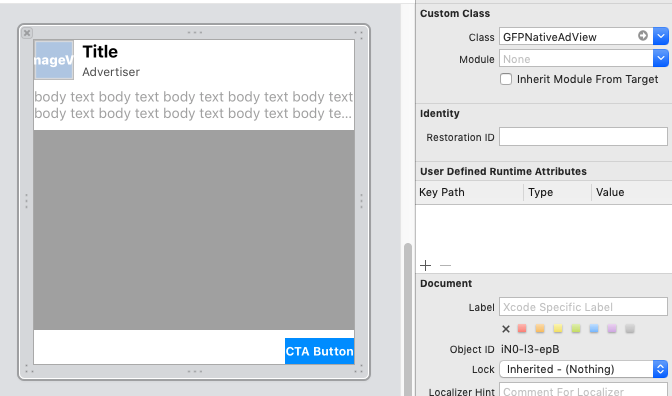
1. 네이티브 광고용 뷰(xib)를 만들고, Xcode 의 Identity Inspector 탭에서 Custom Class를 **GFPNativeAdView** 로 설정합니다.
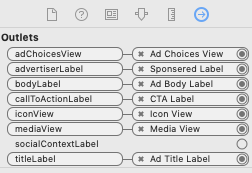
2. 네이티브 광고 뷰를 구성하는 각 에셋 뷰(title, body 등등)를 만들고, Connections Inspector 탭에서 GFPNativeAdView의 해당 Outlet과 연결합니다.
* 광고의 동영상 또는 이미지를 표시하는 데 사용되는 mediaView도 Custom Class를 **GFPMedaiView**로 설정해주어야 합니다.
3. 네이티브 광고 로드이후 아래와 같은 형태로 구현이 가능합니다.
#### component를 SDK에 매칭
```objective-c
#import
#import "NAMAdapter.h"
- (void)viewDidLoad {
[super viewDidLoad];
// Size
CGFloat width = [UIScreen mainScreen].bounds.size.width;
CGFloat xibHeight = (width * 185) / 360;
NSLog(@"width : %f, xibHeight : %f",width, xibHeight);
CGFloat roundXibHeight = round(xibHeight * 10 )/ 10;
NSLog(@"width : %f, height : %f",width, roundXibHeight);
// 일반형
GFPNativeAdView *namNativeAdView =
[[NSBundle mainBundle] loadNibNamed:@"GFPNativeAdView" owner:nil options:nil].firstObject;
namNativeAdView.frame = CGRectMake(0, 0, width, roundXibHeight);
apNAMNativeAdRenderer.namNativeAdView = namNativeAdView;
[_adPopcornSSPNativeAd setNAMRenderer:apNAMNativeAdRenderer superView:namNativeAdView]; // SuperView
}
```
Swift **(mediaView, BodyLabel 연동 필수!)**
{% file src="/files/3E1XYZv99KxTnndvYGba" %}
**네이티브 광고 뷰 생성**
1. 네이티브 광고용 뷰(xib)를 만들고, Xcode 의 Identity Inspector 탭에서 Custom Class를 **GFPNativeAdView** 로 설정합니다.
2. 네이티브 광고 뷰를 구성하는 각 에셋 뷰(title, body 등등)를 만들고, Connections Inspector 탭에서 GFPNativeAdView의 해당 Outlet과 연결합니다.
* 광고의 동영상 또는 이미지를 표시하는 데 사용되는 mediaView도 Custom Class를 **GFPMedaiView**로 설정해주어야 합니다.
3. 네이티브 광고 로드이후 아래와 같은 형태로 구현이 가능합니다.
#### component를 SDK에 매칭
```swift
private var namNativeView: GFPNativeAdView = GFPNativeAdView()
override func viewDidLoad()
{
// 일반형
namNativeAdView = Bundle.main.loadNibNamed("GFPNativeAdView",
owner: nil,
options: nil)?.first as? GFPNativeAdView
apNAMNativeAdRenderer.namNativeAdView = namNativeAdView
adPopcornSSPNativeAd.setNAMRenderer(apNAMNativeAdRenderer, superView:namNativeAdView) // SuperView
}
```
**AdFit 네이티브 레이아웃 설정**
Objetive-C
#import "AdFitAdapter.h"
- (void)viewDidLoad {
[super viewDidLoad];
// Do any additional setup after loading the view.
APSSPAdfitNativeAdView *adfitNativeAd =
[[NSBundle mainBundle] loadNibNamed:@"APSSPAdfitNativeAdView" owner:nil options:nil].firstObject;
adfitNativeAd.frame = CGRectMake(0, 0, [UIScreen mainScreen].bounds.size.width, 250);
APAdFitNativeAdRenderer *apAdFitNativeAdRenderer = [[APAdFitNativeAdRenderer alloc] init];
apAdFitNativeAdRenderer.useBizBoardTemplate = NO;
apAdFitNativeAdRenderer.adfitNativeAdUIView = adfitNativeAd;
[_adPopcornSSPNativeAd setAdFitRenderer:apAdFitNativeAdRenderer superView:adfitNativeAd];
}
```
Swift
**AdMob 네이티브 레이아웃 설정**
Objetive-C
{% endhint %}
#### component를 SDK에 매칭
```objective-c
#import
#import "AdMobAdapter.h"
- (void)viewDidLoad {
[super viewDidLoad];
// Do any additional setup after loading the view.
GADNativeAdView *admobNativeAdView =
[[NSBundle mainBundle] loadNibNamed:@"GADNativeAdView" owner:nil options:nil].firstObject;
APAdMobNativeAdRenderer *apAdMobNativeAdRenderer = [[APAdMobNativeAdRenderer alloc] init];
apAdMobNativeAdRenderer.admobNativeAdView = admobNativeAdView;
[_adPopcornSSPNativeAd setAdMobRenderer:apAdMobNativeAdRenderer superView: admobNativeAdView];
}
```
Swift =
{% endhint %}
#### component를 SDK에 매칭
```swift
private var admobNativeAdView :GADNativeAdView = GADNativeAdView()
override func viewDidLoad()
{
admobNativeAdView = Bundle.main.loadNibNamed("GADNativeAdView",
owner: nil,
options: nil)?.first as? GADNativeAdView
apAdMobNativeAdRenderer= APAdMobNativeAdRenderer.init()
apAdMobNativeAdRenderer.admobNativeAdView = admobNativeAdView
adPopcornSSPNativeAd.setAdMobRenderer(apAdMobNativeAdRenderer, superView: admobNativeAdView)
}
```
### 네이티브 동영상 샘플
* 위 미디에이션 설정을 모두 포함한 전체 샘플 코드입니다.
Objective-C "
placementId:@""
viewController:self];
// 2. AdPopcornSSP Renderer
APSSPNativeAdRenderer *renderer = [[APSSPNativeAdRenderer alloc] init];
renderer.apSSPNativeAdView = _apSSPNativeAdView;
renderer.titleLabel = _apSSPTitleView;
renderer.descLabel = _apSSPDescView;
renderer.mainImageView = _apSSPMainImageView;
renderer.iconImageView = _apSSPIconImageView;
renderer.ctaButton = _apSSPCTAButton;
renderer.ctaLabel = _apSSPCTAView;
renderer.useTemplate = NO;
[_adPopcornSSPNativeAd setApSSPRenderer:renderer superView:_apSSPNativeAdView];
// 3. NAM Renderer
GFPNativeAdView *namNativeAdView =
[[NSBundle mainBundle] loadNibNamed:@"GFPNativeAdView" owner:nil options:nil].firstObject;
APNAMNativeAdRenderer *apNAMRenderer = [[APNAMNativeAdRenderer alloc] init];
apNAMRenderer.namNativeAdView = namNativeAdView;
[_adPopcornSSPNativeAd setNAMRenderer:apNAMRenderer superView:namNativeAdView];
// 4. AdFit Renderer
APSSPAdfitNativeAdView *adfitNativeAd =
[[NSBundle mainBundle] loadNibNamed:@"APSSPAdfitNativeAdView" owner:nil options:nil].firstObject;
APAdFitNativeAdRenderer *apAdFitRenderer = [[APAdFitNativeAdRenderer alloc] init];
apAdFitRenderer.useBizBoardTemplate = NO;
apAdFitRenderer.adfitNativeAdUIView = adfitNativeAd;
[_adPopcornSSPNativeAd setAdFitRenderer:apAdFitRenderer superView:adfitNativeAd];
// 5. AdMob Renderer
GADNativeAdView *admobNativeAdView =
[[NSBundle mainBundle] loadNibNamed:@"GADNativeAdView" owner:nil options:nil].firstObject;
APAdMobNativeAdRenderer *apAdMobRenderer = [[APAdMobNativeAdRenderer alloc] init];
apAdMobRenderer.admobNativeAdView = admobNativeAdView;
[_adPopcornSSPNativeAd setAdMobRenderer:apAdMobRenderer superView:admobNativeAdView];
// 6. 광고 요청
[_adPopcornSSPNativeAd loadRequest];
}
```
Swift ",
placementId: "",
viewController: self)
// 2. AdPopcornSSP Renderer
let renderer = APSSPNativeAdRenderer()
renderer.apSSPNativeAdView = apSSPNativeAdView
renderer.titleLabel = apSSPTitleView
renderer.descLabel = apSSPDescView
renderer.mainImageView = apSSPMainImageView
renderer.iconImageView = apSSPIconImageView
renderer.ctaButton = apSSPCTAButton
renderer.ctaLabel = apSSPCTAView
renderer.useTemplate = false
adPopcornSSPNativeAd.setApSSPRenderer(renderer, superView: apSSPNativeAdView)
// 3. NAM Renderer
let namNativeAdView = Bundle.main.loadNibNamed("GFPNativeAdView",
owner: nil,
options: nil)?.first as? GFPNativeAdView
let apNAMRenderer = APNAMNativeAdRenderer()
apNAMRenderer.namNativeAdView = namNativeAdView
adPopcornSSPNativeAd.setNAMRenderer(apNAMRenderer, superView: namNativeAdView)
// 4. AdFit Renderer
let adfitNativeAd = Bundle.main.loadNibNamed("APSSPAdfitNativeAdView",
owner: nil,
options: nil)?.first as? APSSPAdfitNativeAdView
let apAdFitRenderer = APAdFitNativeAdRenderer()
apAdFitRenderer.useBizBoardTemplate = false
apAdFitRenderer.adfitNativeAdUIView = adfitNativeAd
adPopcornSSPNativeAd.setAdFitRenderer(apAdFitRenderer, superView: adfitNativeAd)
// 5. AdMob Renderer
let admobNativeAdView = Bundle.main.loadNibNamed("GADNativeAdView",
owner: nil,
options: nil)?.first as? GADNativeAdView
let apAdMobRenderer = APAdMobNativeAdRenderer()
apAdMobRenderer.admobNativeAdView = admobNativeAdView
adPopcornSSPNativeAd.setAdMobRenderer(apAdMobRenderer, superView: admobNativeAdView)
// 6. 광고 요청
adPopcornSSPNativeAd.loadRequest()
}
```