> For the complete documentation index, see [llms.txt](https://adpopcornssp.gitbook.io/ssp-sdk/llms.txt). Markdown versions of documentation pages are available by appending `.md` to page URLs; this page is available as [Markdown](https://adpopcornssp.gitbook.io/ssp-sdk/sdk/cocoscreator/undefined.md).
# 플러그인 설치 및 기본 빌드
아래는 플러그인 설치 및 AdPopcornSSP SDK 사용을 하기 위한 기본 빌드 방식을 기술합니다.
## 1. Plugin 설치
아래 링크의 플러그인 v1.0.5 을 다운로드 하여 주세요.
[\[AdPopcornSSP\_CocosCreatorPlugin 다운로드\]](https://github.com/IGAWorksDev/AdPopcornSDK/raw/refs/heads/master/AdPopcornSSP/05-etc/AdPopcornSSP_CocosCreatorPlugin_v1.0.5.zip)
#### 1.1 build-templates 복사
다운로드 받은 플러그인 내, build-templates 폴더의 내용을 아래와 같이 프로젝트에 복사합니다.
```
[프로젝트 루트]/build-templates/
└── jsb-link/
└── frameworks/
└── runtime-src/
├── proj.android-studio/
│ ├── app/
│ ├── build.gradle
│ ├── local.properties
│ └── src/
│ └── main/
│ └── java/
│ └── com/adpopcorn/sspplugin/
│ │ └── AdPopcornSSPPlugin.java
│ └── AndroidManifest.xml
│
└── proj.ios_mac/
├── Podfile
└── ios/
├── AdPopcornSSPPlugin.h
└── AdPopcornSSPPlugin.mm
```
#### 1.2 plugin script 복사
다운로드 받은 플러그인 내, assets/scripts 폴더의 AdPopcornSSPPlugin.js 을 아래와 같이 프로젝트에 복사합니다.
```
[프로젝트 루트]/assets/scripts/
└── AdPopcornSSPPlugin.js
```
## 2. Plugin 빌드
Android, ios 별로 플러그인 설치 후, 아래의 과정으로 추가 설정을 진행해야, AdPopcornSSP SDK가 정상 동작합니다.
#### 2.1 Android
* CocosCreator > Project > Build > Android > buid
* \[프로젝트 루트] > build > jsb-link > frameworks > runtime-src > proj.android-studio > build.gradle 실행
* Android Studio에서 instantapp 내, build.gradle 내에 아래 선언 추가
```
implementation project(':{프로젝트이름}')
```
* 아래 page 의 AndroidManifest.xml 설정만 확인하여 앱키를 세팅해줍니다.
{% content-ref url="/pages/07ujY2ZLJDcbzJ7a5WW6" %}
[기본 설정](/ssp-sdk/sdk/android/undefined.md)
{% endcontent-ref %}
* instanceapp build
#### 2.2 iOS
* CocosCreator > Project > Build > iOS > buid
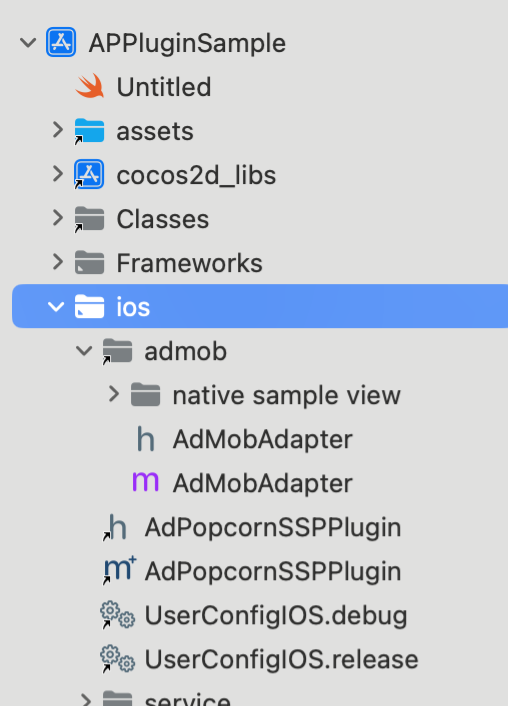
* \[프로젝트 루트] > build > jsb-link > frameworks > runtime-src > proj.ios\_mac > ios 폴더 내에 아래 파일 수정
* UserConfigIOS.debug 내 아래 코드 추가
* \#include "..../Pods/Target Support Files/Pods-{프로젝트이름}-mobile/Pods-{프로젝트이름}-mobile.debug.xcconfig"
* UserConfigIOS.release 내 아래 코드 추가
* \#include "..../Pods/Target Support Files/Pods-{프로젝트이름}-mobile/Pods-{프로젝트이름}-mobile.release.xcconfig"
* \[프로젝트 루트] > build > jsb-link > frameworks > runtime-src > proj.ios\_mac 경로에서 pod install 수행
* xcode로 {프로젝트이름}.xcworkspace 오픈
* ios 폴더 밑에 AdPopcornSSPPlugin.h, AdPopcornSSPPlugin.mm 파일을 reference files in place를 선택한 뒤, target을 {프로젝트이름}-mobile 선택하여 추가
* 아래 page의 링크에서 IDFA 설정만 확인하여 앱 내 세팅하여 줍니다.
{% content-ref url="/pages/fMDRjZmIzDTLySHdYr2S" %}
[기본 설정](/ssp-sdk/sdk/ios/ios-2.x.x/undefined.md)
{% endcontent-ref %}
* xcode build 완료
#### 2.3 미디에이션
애드팝콘에서는 2가지 형태의 미디에이션을 지원합니다. 하나의 방식을 선택한 뒤, OS 환경에 맞게 연동을 진행해 주세요.
* 애드팝콘 미디에이션
미디에이션 설정
## 1. 공통
CocosCreator 환경에서 지원되는 미디에이션 업체는 아래와 같습니다.
* AppLovin
* UnityAds
* Vungle(Liftoff)
* Meta(FAN)
* AdMob
* Fyber
* Pangle
## 2. Android
Android 환경에서는 build.gradle / AndroidManifest.xml 파일 내 추가 설정만 진행하면 됩니다.
#### 2.1 Build.gradle(Project Level)
Pangle SDK를 사용하고자 하는 경우에는 아래 Pangle 부분을 추가해 주시면 됩니다.
#### 2.2 Build.gradle(App Level)
아래 설정 중, Common 라이브러리와사용 예정인 업체의 SDK만 탑재하면 됩니다.
```
dependencies{
// Common
api 'com.google.android.gms:play-services-ads-identifier:18.2.0'
// AppLovin
api 'com.applovin:applovin-sdk:13.5.1'
// UnityAds
api 'com.unity3d.ads:unity-ads:4.16.4'
// Vungle(Liftoff)
api 'com.vungle:vungle-ads:7.6.1'
// Meta(FAN)
api 'androidx.annotation:annotation:1.4.0'
api 'com.facebook.android:audience-network-sdk:6.21.0'
// AdMob
api 'com.google.android.gms:play-services-ads:24.8.0'
// Fyber
api "com.fyber:marketplace-sdk:8.4.1"
// Pangle
api 'com.pangle.global:pag-sdk:7.8.0.7'
}
```
#### 2.3 AndroidManifest.xml
AdMob SDK를 사용하는 경우에는 아래의 설정을 추가해 줍니다.
입력해야 되는 키 값에 대해서는 사업팀()에 문의해 주세요
```
```
## 3. iOS
iOS 환경에서는 각 업체의 SDK와 애드팝콘 SSP에서 제공하는 미디에이션 업체 별 Adapter 파일을 프로젝트에 import 하여야 정상 동작합니다.
#### 3.1 PodFile
PodFile 내, 사용하고자 하는 업체의 Pod 정보 입력합니다.
```
platform :ios, '14.0'
target {프로젝트이름} do
# AdPopcornSSP
# AdMob
pod 'Google-Mobile-Ads-SDK', '12.14.0'
# Pangle
pod 'Ads-Global', '7.8.0.3'
# Meta(FAN)
pod 'FBAudienceNetwork', '6.21.0'
# AppLovin
pod 'AppLovinSDK', '13.5.1'
# UnityAds
pod 'UnityAds', '4.16.4'
# Vungle
pod "VungleAds", '7.6.2'
# Fyber
pod 'Fyber_Marketplace_SDK', '8.4.2'
end
```
#### 3.2 Adapter 파일 추가
[\[애드팝콘 SSP iOS MediationAdapter 다운로드\]](https://github.com/IGAWorksDev/AdPopcornSDK/raw/refs/heads/master/AdPopcornSSP/02-ios-sdk/MediationAdapter_CocosCreator/APSSPMediationAdapter_CocosCreator_251208.zip)
위 다운로드 파일에서 사용하고자 하는 미디에이션 폴더 안에 있는 .h, .m 파일들을프로젝트에 추가하면 됩니다.
* 프로젝트에 추가 시, \[프로젝트 루트] > ios > 폴더 밑에 폴더와 파일을 옮깁니다.
* 복사된 파일들을 xCode에서 Add Files to "프로젝트 이름" 을 통해 프로젝트에 import 합니다.
* 파일 추가 시, target은 {프로젝트이름}-mobile로 설정하고 reference files in place를 설정하여 추가.
#### 3.3 미디에이션 초기화
iOS 미디에이션 초기화는 직접 수동으로 진행해 주어야 합니다. 이에 아래 경로의 파일 내에, 미디에이션 업체 별 SDK 초기화 코드를 추가합니다.
{프로젝트 이름} > ios > AppController.m
```objective-c
#import // Admob
#import // Vungle
#import // AppLovin
#import // Meta
#import // Fyber
#import // Pangle
@import UnityAds; //UnityAds
- (BOOL)application:(UIApplication *)application didFinishLaunchingWithOptions:(NSDictionary *)launchOptions {
{
...
// Admob
[[GADMobileAds sharedInstance] startWithCompletionHandler:nil];
// UnityAds
[UnityAds initialize:@"your_game_id" testMode:NO initializationDelegate:self];
// Vungle
[VungleAds initWithAppId:@"app_id" completion:^(NSError * _Nullable error) {
}];
// AppLovin
ALSdkInitializationConfiguration *initConfig = [ALSdkInitializationConfiguration configurationWithSdkKey:
@"Your AppLovin Sdk Key" builderBlock:^(ALSdkInitializationConfigurationBuilder *builder) {
builder.mediationProvider = ALMediationProviderMAX;
}];
// Initialize the SDK with the configuration
[[ALSdk shared] initializeWithConfiguration: initConfig completionHandler:^(ALSdkConfiguration *sdkConfig) {
}];
// Meta
[FBAudienceNetworkAds initializeWithSettings:nil completionHandler:nil];
[FBAdSettings setAdvertiserTrackingEnabled:YES];
// Fyber
IASDKCore.sharedInstance initWithAppID:@"fyber_code"
completionBlock:^(BOOL success, NSError * _Nullable error) {}
completionQueue:nil];
// Pangle
PAGConfig *config = [PAGConfig shareConfig];
config.appID = @"pangle_code"; // pangle test code
[PAGSdk startWithConfig:config completionHandler:^(BOOL success, NSError * _Nonnull error) {
if (success) {
//load ad data
}
}];
}
```
#### 3.4 체크 포인트
iOS의 경우 미디에이션 SDK 설치 후, 빌드 시, 아래와 같은 오류가 발생할 수 있습니다. 각 케이스별로 참고하시기 바라며, 그 이외에 오류 발생 시 문의 부탁 드립니다.
3.3.1 Cannot synthesize weak property in file using manual reference counting
{% code overflow="wrap" %}
```
CocosCreator 기본 설정이 ARC가 OFF이기에 발생하는입니다. Xcode > [프로젝트] > Build Settings에서 Objective-C Automatic Reference Counting 를 YES로 변경
```
{% endcode %}
3.3.2 'NSAutoreleasePool' is unavailable: not available in automatic reference counting mode
{% code overflow="wrap" %}
```
3.3.1 이슈 해결을 위해 Objective-C Automatic Reference Counting 를 YES로 변경할 경우, main.m 파일에서 이슈 발생
main.m 파일 내의 코드를 아래와 같이 변경하시기 바랍니다.
// 기존
/*int main(int argc, char *argv[]) {
NSAutoreleasePool * pool = [[NSAutoreleasePool alloc] init];
int retVal = UIApplicationMain(argc, argv, nil, @"AppController");
[pool release];
return retVal;
}*/
// 변경
int main(int argc, char *argv[]) {
@autoreleasepool {
return UIApplicationMain(argc, argv, nil, @"AppController");
}
}
```
{% endcode %}
3.3.3 Undefined symbol: \_*swift\_FORCE\_LOAD*$\_swiftCompatibility50
{% code overflow="wrap" %}
```
일부 미디에이션 업체에서는 Swfit 코드를 포함한 프레임워크를 사용합니다. 이에 프로젝트 내 Swift 환경이 준비되어 있지 않은 경우 발생함.
이에 아래 2가지 설정을 추가할 경우 해결됨.
1.Swift Runtime 자동 포함 설정
Xcode → Target → Build Settings 에서 아래 설정을 수정.
- Always Embed Swift Standard Libraries = YES
2.Swift 파일을 하나 추가 (Swift 런타임 강제 활성화)
Xcode 내에 빈 swift 파일 하나를 아래의 과정으로 추가함.
- Xcode → File → New → File → Swift File
- 이름 아무거나 (e.g., Dummy.swift)
- “Create Bridging Header?” → Yes
```
{% endcode %}
* Max 미디에이션(Beta) : 사용하고자 할 경우 사업팀()에 문의 하세요
{% content-ref url="/pages/esnyF96ixFtxH0IuGWzx" %}
[MAX 미디에이션(Beta, Android)](/ssp-sdk/undefined-1/max-beta/max-beta-android.md)
{% endcontent-ref %}
{% content-ref url="/pages/inI4X4hiPeJ8WPpyw8Zg" %}
[iOS 2.x.x (구버전)](/ssp-sdk/undefined-1/max-beta/max-beta-ios/ios-2.x.x.md)
{% endcontent-ref %}
## 3. 설치 및 빌드 완료
Android / ios 각각 위 과정이 성공적으로 진행된다면, 네이티브 단 연동은 기본적으로 마무리 됩니다. 이후의 작업은 js쪽에서 작업하여 반영하면 됩니다. 각 광고 타입에 대한 연동은 다음 페이지에서 확인하시면 됩니다.